

Our Remote Support is not available at present to Apple iPhone/iPad and Android devices.
Please click here to exit.
If you have arrived at this page and are not currently chatting to a Lincolnshire IT Technician, please click here.
To benefit from our enhanced remote support, please read through and follow these instructions, unless advised otherwise by a Technician.
First, click on the button to choose whether you want remote support on a Windows Laptop/Desktop or Apple Mac.
Instructions For Windows Users
- Click this button to visit our remote support provider.
Start Remote Support - You will be taken to this screen in a new browser tab.
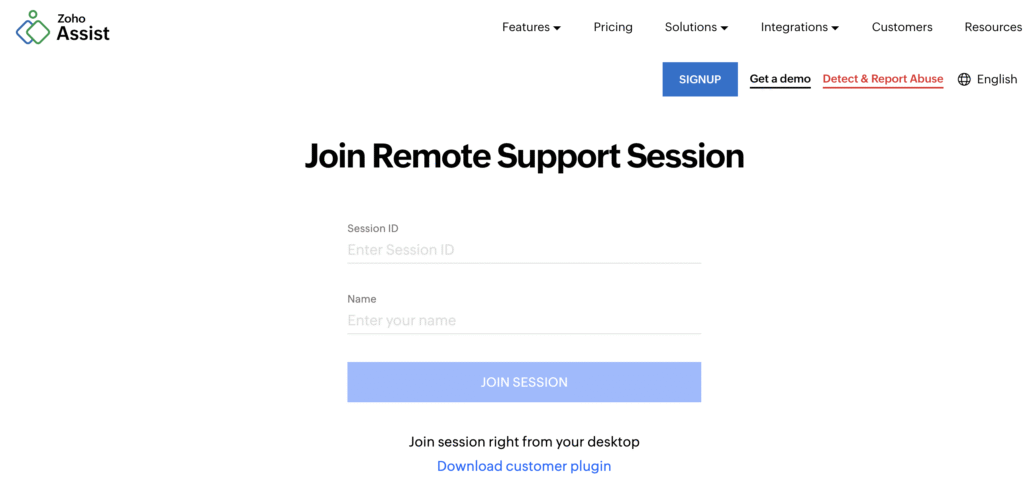
- The Lincolnshire IT technician will give you a 9 digit code and you should enter your name.
Click JOIN SESSION. - When this screen appears, click AGREE AND DOWNLOAD. A small file will be downloaded onto your computer.
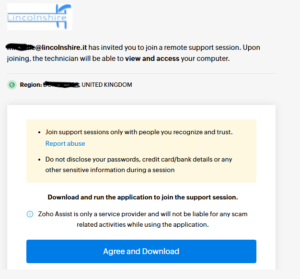
- Double-click the ZA Connect file which will be in the download area of your web browser (usually top right)
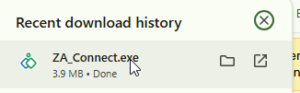
- If you are your prompted if this program should make changes to your computer, click Yes.
- The following screen will be shown. Click Join to begin remote support
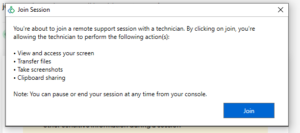
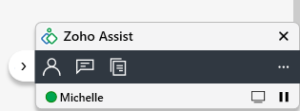
- This will appear in the bottom right hand corner indicating the remote support session is being provided and the technician name. Ensure you remain on the telephone unless the technician tells you otherwise.
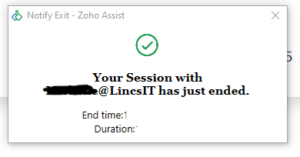
- When the session ends, the technician can no longer access your computer without a new code and you will see this screen.
- To pay for the remote session, click this button/image

Instructions For Apple Mac Users
- Click this button to visit our remote support portal.
Start Remote Support - You will be taken to this screen in a new browser tab.
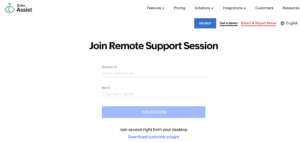
- The Lincolnshire IT technician will give you a 9 digit code and you should enter your name.
Click JOIN SESSION. - When this screen appears, click AGREE AND DOWNLOAD. A small file will be downloaded onto your computer.
- Double-click the JoinMac.dmg file which will be in the download area of your web browser (usually top right)
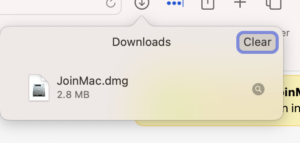
- A screen will appear, double click on the blue/green icon to open the remote support software.
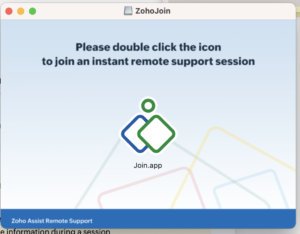
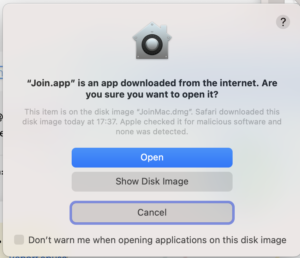
- Depending on which version of MacOS you are using, the following screen will appear. Click Open.
- The following screen will be shown. Click Join to begin remote support
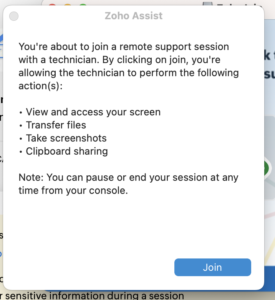
- This will appear in the bottom right hand corner indicating the remote support session is being provided and the technician name. Ensure you remain on the telephone unless the technician tells you otherwise.
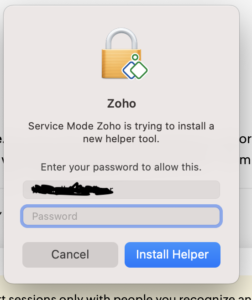
- During the session this message may appear. you should enter the password you use to log in to your Mac.
- The technician will tell you when they end the session and after that point, the technician can no longer access your computer without a new code.
- To pay for the remote session, click this button/image